Start with a seed
Open Investigations and enter a domain, mailbox or IP address. The first lookup costs up to 8 units; its maximum is shown before you submit. After results arrive, the seed becomes the page heading.
For a direct question such as listing names under a domain or inspecting DNS records, use Lookup. Investigations brings several kinds of evidence together.
Read the evidence
The Relationships diagram and the table describe the same investigation. Open Filters to narrow what you see. Use the table to read names, values and evidence, including on a phone or without the diagram.
- Subject: the seed and items proposed as part of the subject.
- To review: candidates that need your judgment, including same-name matches.
- Infrastructure: services or values used by the subject.
- Hidden / Dismissed: items hidden in an unsaved view or dismissed in saved work.
- Lookups: the explorations made from this investigation.
The table keeps the same columns: Item, Type, Class, Why, Shared, Score, Observed and actions. A blank cell means that information is not available for that item. Open the class, score or diagram help for interpretation and limitations.
In an unsaved result, changing class tabs or filtering loaded rows does not make another lookup or spend units. On a saved page, reading tabs and filtering stored items is also free.
Explore one connection
Use a row's action menu or a diagram action to explore a shared value, a domain's names or its addresses. Each metered action shows its price before you choose it. Revealing already loaded rows is free; requesting another result page is a separate priced action.
A shared service may explain a connection without being useful evidence about the subject. Some common or shared values cannot be expanded. Open the relevant help to understand the limitation.
Save and curate
Choose Save as investigation to keep eligible results. Saving does not repeat the lookup. On a saved page, changes are kept as you make them, and only your account can open the investigation.
Move individual items or selected rows between classes. Use the row keys (A accepts a proposal, S R I D move a row, U undoes) to work through candidates on any tab. Your classifications are decisions you can revise; Undo can reverse supported recent actions, but does not refund lookup units.
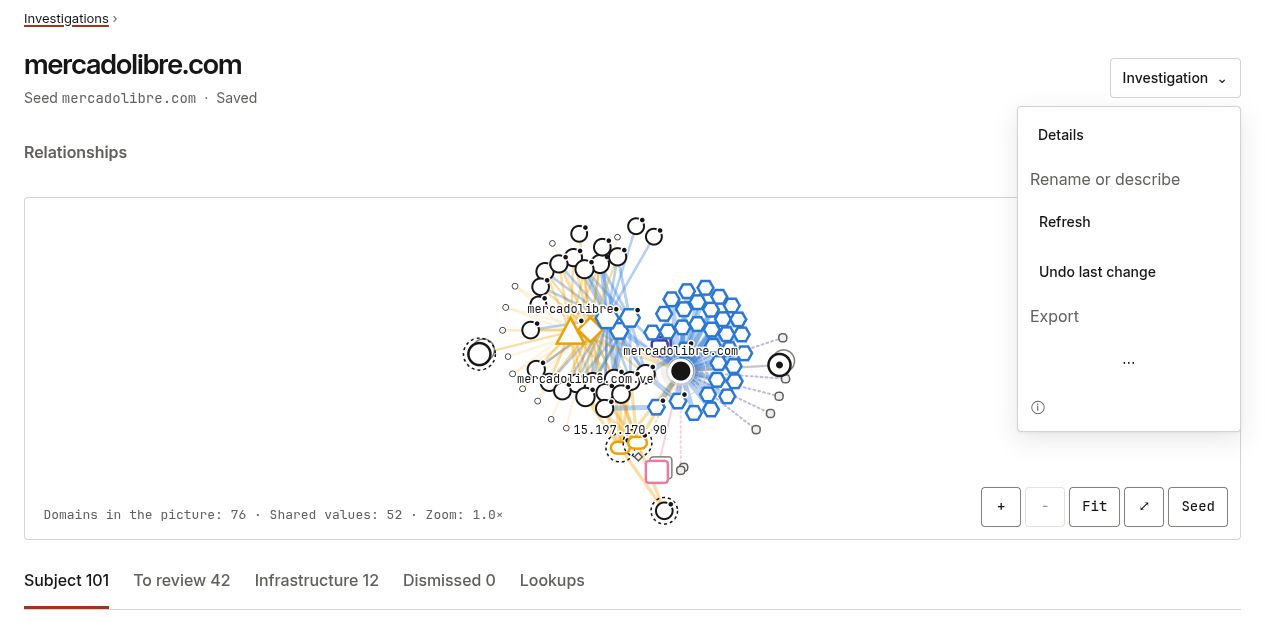
Open the Investigation menu to rename the work, add a description, view details, export selected classes as CSV or JSON, or archive it. Archived investigations are read-only until you unarchive them. Delete removes the saved investigation after confirmation.
 Open image at full size
The Investigation menu keeps saved-work controls together. Captured saved example with Details, Rename, Refresh, Undo and Export.
Find saved work on the Investigations home page, under Active or Archived. The dashboard also lists recent active investigations below Recent lookups.
Refresh saved evidence
Refresh repeats the saved investigation's active lookups. The confirmation page shows the maximum cost before you start. It is an explicit action, not automatic monitoring.
Your chosen classes stay in place. New finds enter To review, marked new since last refresh. Items not found again are retained and marked evidence gone. Read the refresh summary: it states how many lookups were reached and the units charged, including when a refresh stops early.
API access
A saved investigation can be read from code with an API key. Build and triage it here; whatever you mark Subject is what GET /v1/investigations/<id>/?class=subject returns, each item with its class, who set it and why. The id is the UUID in the investigation's web address, and the investigation's page shows it with a ready curl line under Use from code in the Investigation menu. GET /v1/investigations/ lists your investigations. Reading is free and read-only: creating, exploring and classifying stay in the browser.
The discovery engine is also available through /v1/related/ and /v1/related/expand/. See the API quickstart for response fields, pricing and cursor handling.